
How to transfer spaces?
Transfer spaces from your Personal spaces or between Organizations.
You can transfer a space from your personal spaces to any organization you are a member of, or between organizations linked to the same billing account.
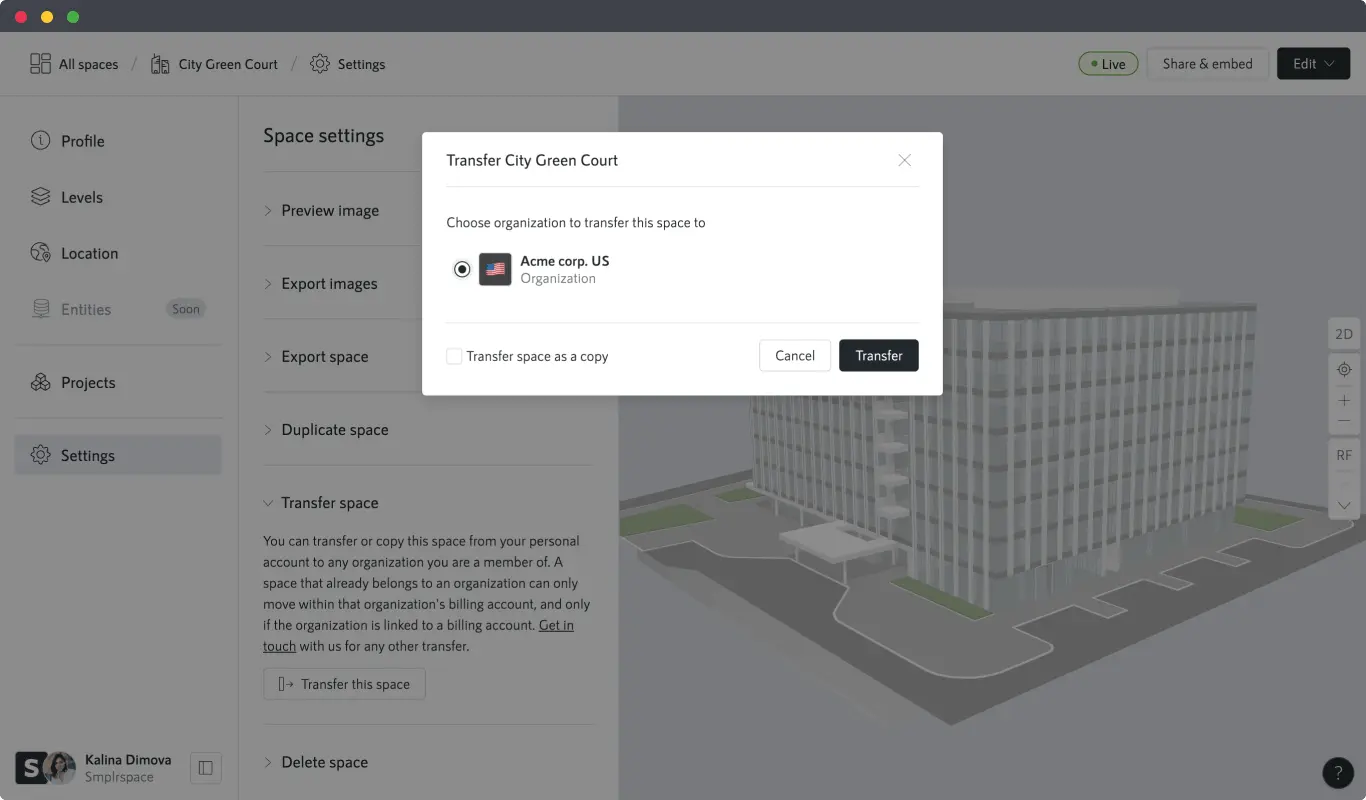
A transfer moves the space by default. If you want to keep a copy in the original location, tick "Transfer space as a copy" during the transfer.
How to transfer a space
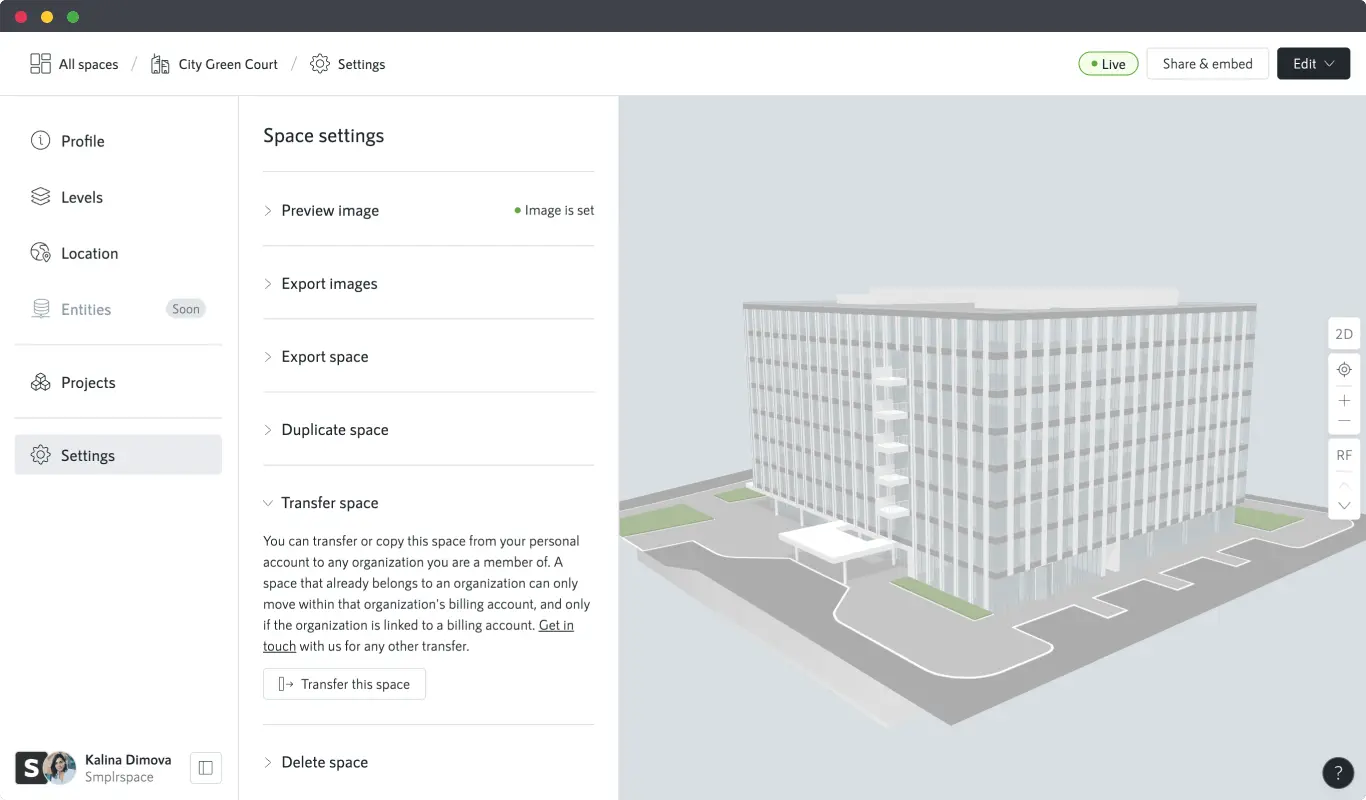
Open the space profile of the space you want to transfer and go to Settings from the sidebar. Find the "Transfer space" section and click "Transfer this space".
From the modal choose the organization to transfer the space to and click "Transfer". The space will move to that organization. To keep a copy in the original location, tick "Transfer space as a copy" before confirming: the original stays where it is, and the two spaces are independent from then on.
Where spaces can be transferred
- From your personal spaces to any organization you are a member of.
- Between organizations, when the space's organization is linked to a billing account. The space can move to any other organization on that same billing account.
Transferring a space from an organization back to your personal spaces isn't available in the app, and neither are transfers between organizations on different billing accounts. Get in touch with us if you need a transfer the app doesn't cover.