
Projects
Projects group an organization's spaces in whatever way makes sense for you: by portfolio, campus, team, or use case.
A project is a group of spaces that belong together, whether that's a portfolio, a campus, a team, or a use case. Each project gets a map-based or catalog overview of its spaces, access tokens scoped to just those spaces, and usage analytics. Projects are available to every organization.
What projects are for
Projects keep separate workstreams organized without leaving your organization. Group spaces by whatever fits how you work, a site, a region, a team, a client, a use case, and work with each group as a unit: see it on a map, scope API access to it, and track its usage.
A space can belong to several projects at once, so the same building can appear in different groupings.
How to create a project
Open the Projects tab in the top bar and click "New project". Give the project a name and choose how you want to see its spaces: together on an interactive map, or individually in a catalog. You're then taken straight into selecting the spaces that belong in it. If you change your mind later, the view type can be edited in the project's settings.

Managing project's spaces
You can change which spaces belong to a project anytime. Open the project and click "Edit" to enter the project manager menu, then choose the "Select spaces" tool. Search all your organization's spaces on the right and add the ones that belong. The project's spaces are listed on the left, where you can also reorder them or remove them from from the project. Click "Done" when you're finished. Each space's profile also shows the projects it's part of.
A space can also be given an alias within a project. The alias overrides the space's name in that project only, so the same space can go by a different name in each project it belongs to.
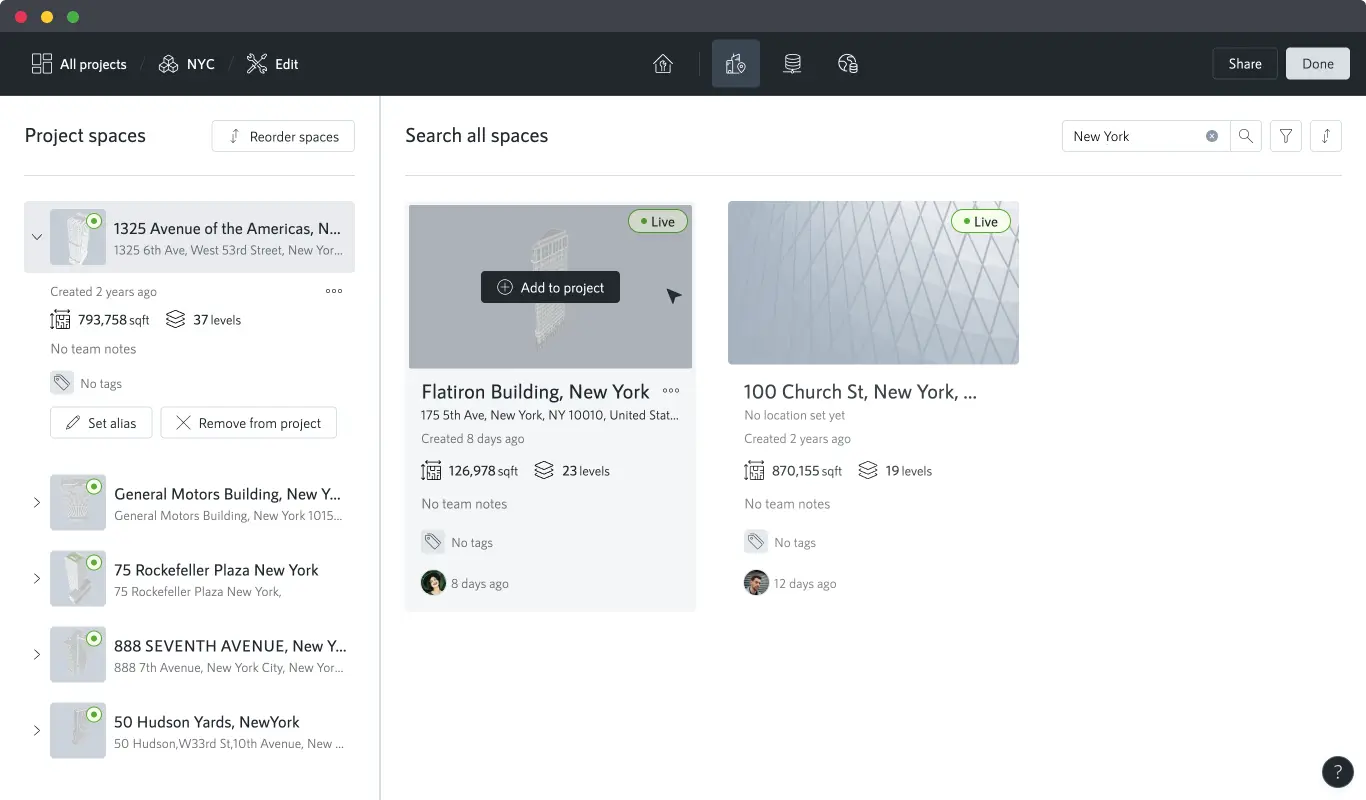
Project overview and project spaces
Each project opens with an overview with total digitized area, notes, and tags. It shows at a glance what the project contains and, with the map view, where everything is. You can switch between default and satellite view when in map mode.
The Project spaces section lists every space in the project with its address and details, next to the map. It's where you browse the project space by space.

Project settings
The project's Settings hold its thumbnail image, view type, and camera placement, along with the actions for duplicating, archiving, or deleting the project.

Archiving a project
You can archive a project from its Settings when it's no longer active. Archived projects are hidden from the projects list by default, can be found with the status filter, and can be unarchived anytime from the same place. Archiving a project doesn't archive the spaces in it.
Sharing and integrating with projects
Project-scoped access tokens
When you create a token on your organization's Developers page, you can restrict it to one or more projects instead of the whole organization. A project-scoped token can only access spaces that belong to its projects, so every integration sees exactly the spaces it should and nothing more.
You embed spaces individually as usual, and the token enforces the boundary. SDK operations respect the scope automatically, down to creating a new space directly into one of the token's projects. See the developer documentation for the details.
Sharing a project
Currently you can share a project only with other members of your organization.
Project usage analytics
The organization's Usage tab can break views down by project, turning raw usage into answers about each group: which projects are getting traction and which have gone quiet, how each one trends over time compared to the previous period, and which are driving your billable views.
The same breakdown is available in your billing account's analytics. Lear more about usage analytics.

Reports for owners and operators
Enterprise organizations request reporting environment on their projects, built on the project's spaces and entities. It turns reporting into something you can point at: a leasing review walked through the stacking plan on the actual towers, month by month; an asset repository where every item sits on its floor plan; the points of interest around a site, mapped where they are. Whatever the report, it shows your portfolio as it exists, not as rows in a spreadsheet.
A project doesn't have to be big to earn reports: a project can hold a single space, and some teams run several projects over the same spaces for different types of reports.

Entities on the project
A project inherits the entities of its spaces, and the project editor adds a map-based manager for geospatial entities placed on the outdoor map around them, with CSV import and export for larger sets. The data behind those entities is then presented in the project's reports.